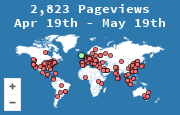
WordPress will show the map if the snippet is in the HTML of the pages you care about. The usual failure is pasting it into a block that strips tags, or into a draft, or into a cached page that never updates. Do the proof before you restyle anything.
Create the snippet first
Add the site at create a widget using the hostname readers actually use. Copy the code from the widget page. Do not reuse a snippet from another site. The general version of this step, including the image fallback, is how to add a visitor map widget.
Put it in a place WordPress will not strip
For a map on one page or post, add a Custom HTML block and paste the snippet there. The Visual editor and some "paragraph" blocks will eat the tags. Custom HTML will not.
For a map on every page, put the snippet in the theme footer. A block theme can do that with a template part. A classic theme can use a footer widget area set to Custom HTML, or the theme's footer file if you maintain the theme yourself. A plugin that offers "insert in footer" also works. Avoid two copies. Two copies count every page twice.
WooCommerce and other plugins do not need anything special. If their pages use the same footer, they are included. If a landing-page plugin uses a blank template with no footer, paste the snippet into that template too or those pages stay invisible.
Caching and the test
- Purge the page cache after you paste. A caching plugin will keep serving the old HTML.
- Open the page in a private window.
- In the browser network panel, confirm a request for the map image or script.
- Open the MapMyVisitors stats page and find that URL.
If the stats page stays empty, work through check that the widget is recording. Do not start by changing colors. A styled snippet that is never requested is still empty.
A static HTML site is a different paste target, covered in adding the map to HTML. The snippet is the same. Only the place you paste it changes.